Hi folks -
Thanks everyone for stopping by our latest Tablo All-Access chat and for all the great questions!
These sessions are all about YOU so let us know what you thought about yesterday’s chat and suggest future topics by filling out this quick 2-minute survey:
Tablo All-Access Program - Post-Chat Feedback Survey
Recap - Fall TV & Football: DVR Scheduling and Playback Tips
If you didn’t get a chance to join, here’s a quick recap of the tips and resources we shared:
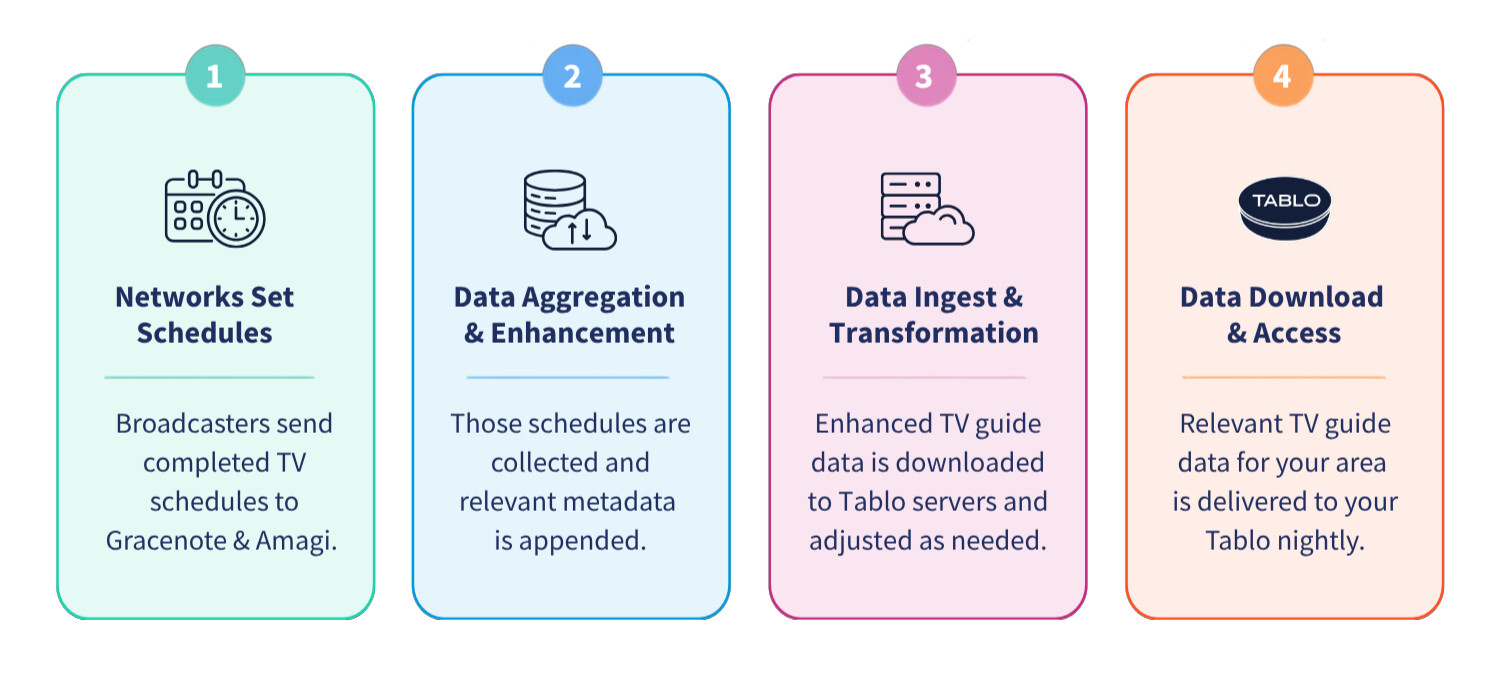
- In the early hours of the morning, your Tablo will automatically perform maintenance that includes updating its TV guide data. It’s important to ensure your Tablo is powered on and has internet access overnight so this process can occur.
- But Tablo doesn’t just rely on the dates and times programs air to schedule recordings. Tablo’s TV guide data includes advanced metadata like unique series IDs, whether the program is new or a rerun and more.
- When you select RECORD ALL or RECORD NEW in the Tablo app, your Tablo uses a unique ID number assigned to every TV series to look for and record episodes of that program. So, when your favorite show returns from summer hiatus, or even if it changes timeslots or networks, it will continue to record automatically until the series is unscheduled. For example, if you set a series recording for Tracker last fall, your Tablo will record the season 4 premiere in early October, even though it’s airing in a different timeslot than usual. Your Tablo will then continue to record new episodes when the series moves back to its regular timeslot.
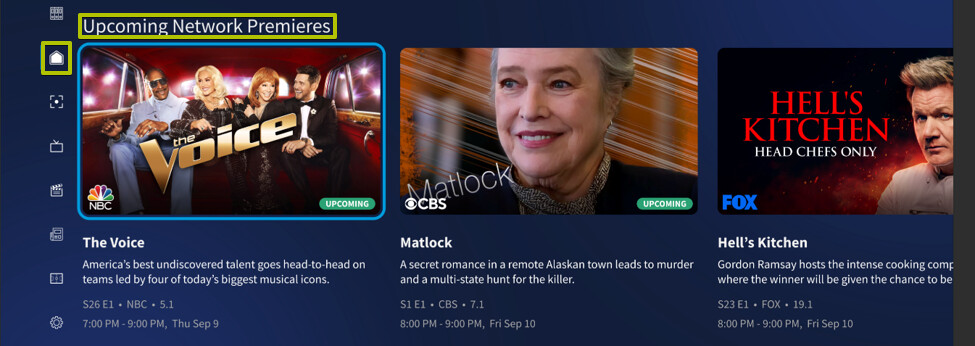
- Just getting started with Tablo or curious about brand-new fall TV series? Check out the Upcoming Network Premieres shelf on the Home screen of the Tablo app. There you’ll find information about and be able to schedule the programs on major broadcast networks with series premieres or season premieres occurring in the next 14 days.
- You can also set series recordings for sports, like NFL football or college football. But if you’re a fan who only watches a specific team, you may want to set one-time recordings for those games instead of filling up your hard drive with long recordings you’ll never watch.
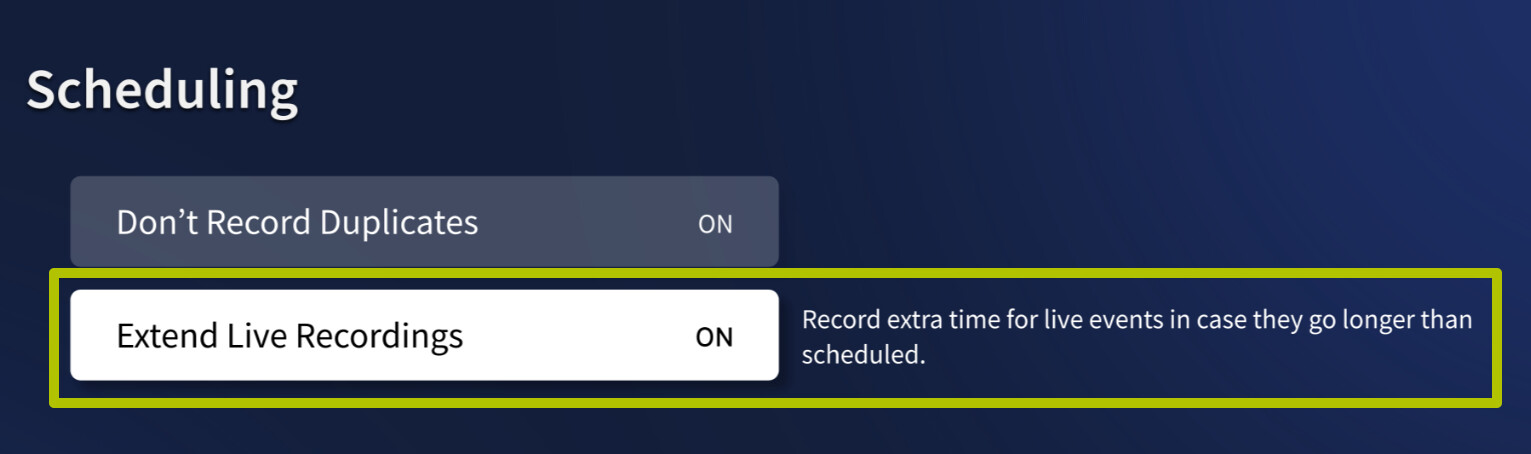
- Sports broadcasts can occasionally run into overtime. Selecting Extend Live Recordings in your Tablo’s Settings screen can help somewhat by automatically adding 30 extra minutes to every game.
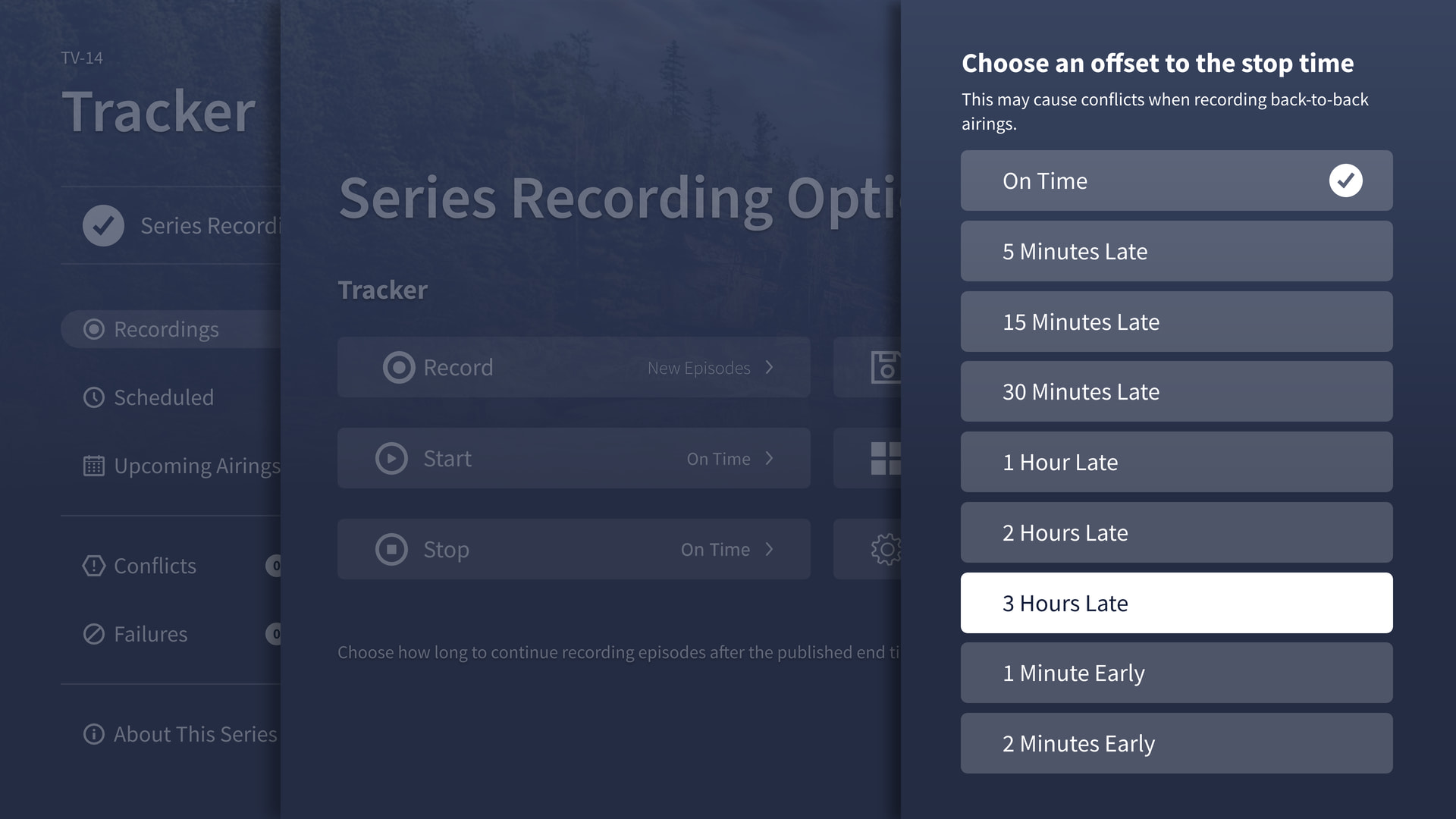
- Want to add even more time? Tablo’s Advanced Recording Options let you add up to 3 hours of recording time so you don’t miss the final play. This is also helpful for programs that air after sporting events and frequently start late.
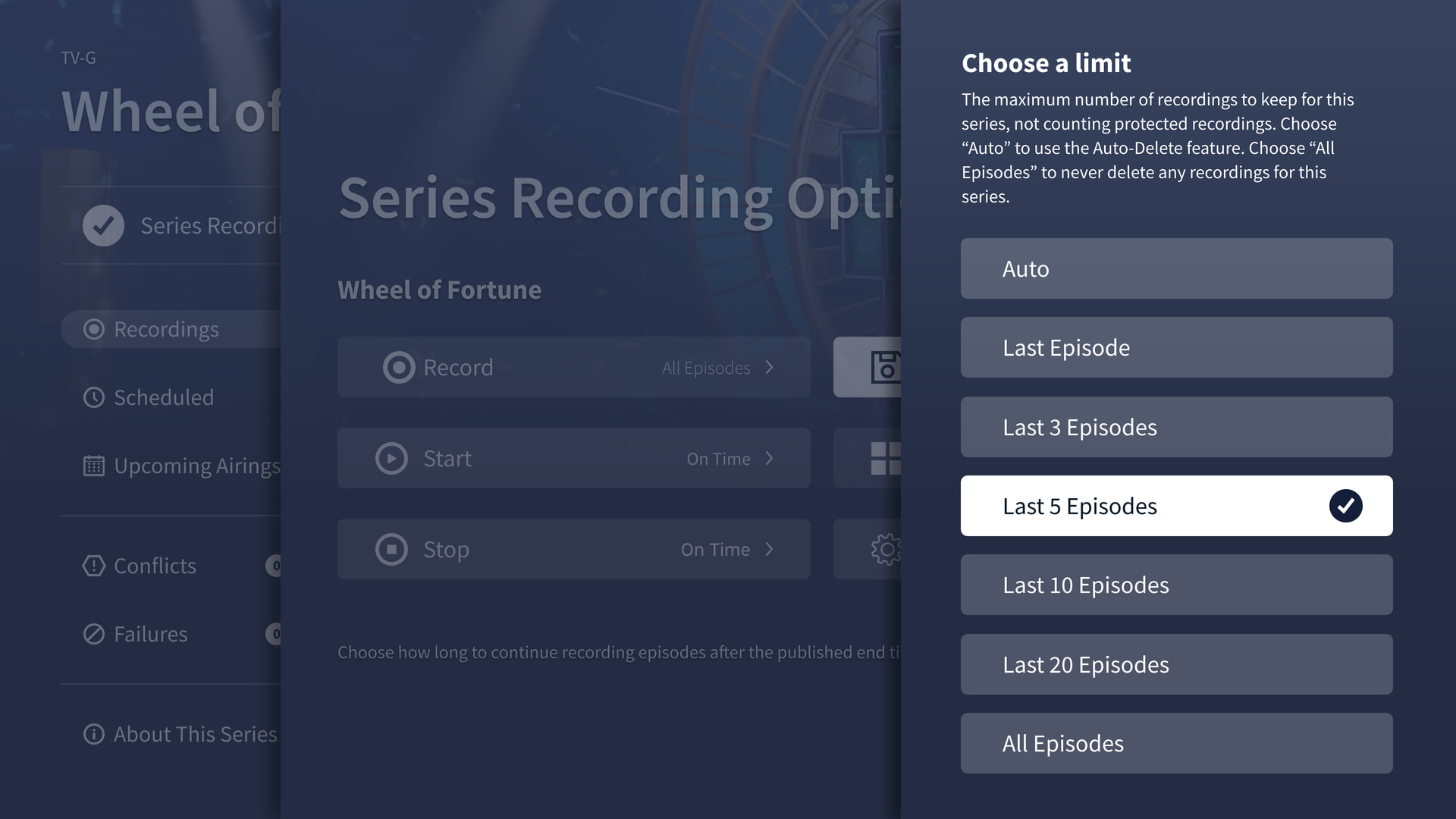
- Advanced Recording Options can also help you manage your Tablo’s recording storage. If you record a program like Jeopardy or the news that airs every day, your hard drive can fill up fast. Using the Keep setting will automatically delete all but the most recent episodes without you having to lift a finger.
- If you frequently record long programs like football games or movies or simply like to save entire seasons of your fav shows, consider expanding your Tablo’s recording storage with a USB hard drive. It’s easy and won’t cause you to lose any of your existing recordings. Best of all, your recordings will be saved in full quality versus being compressed for archiving when using onboard storage.
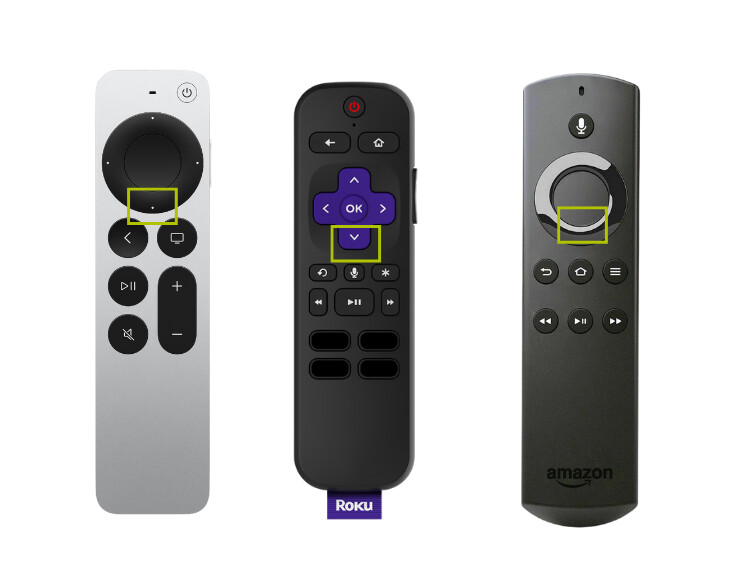
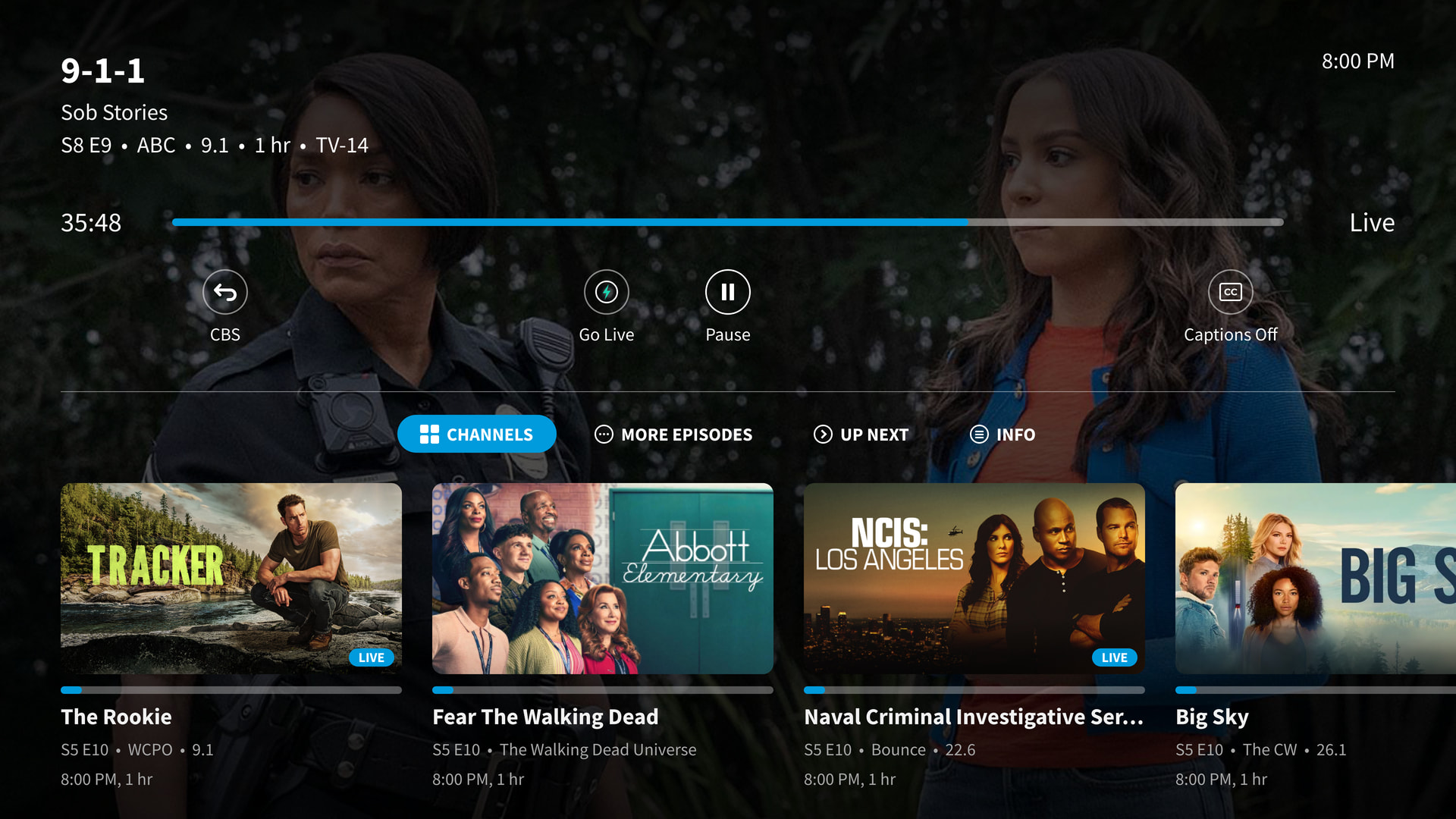
- We’ve talked a lot about recording features, but Tablo power users know there are great features for watching your favorite shows too, like the In-Player Content Tray. You can access this double-layer menu when you’re watching something in the Tablo app by pausing or hitting the down
 button on your remote control.
- Folks who routinely flip between two different programs or sporting events will love the Last Channel feature in the first level of the In-Player Content Tray. It’ll instantly bring you back to the live channel you were watching previously, without needing to return to the guide.
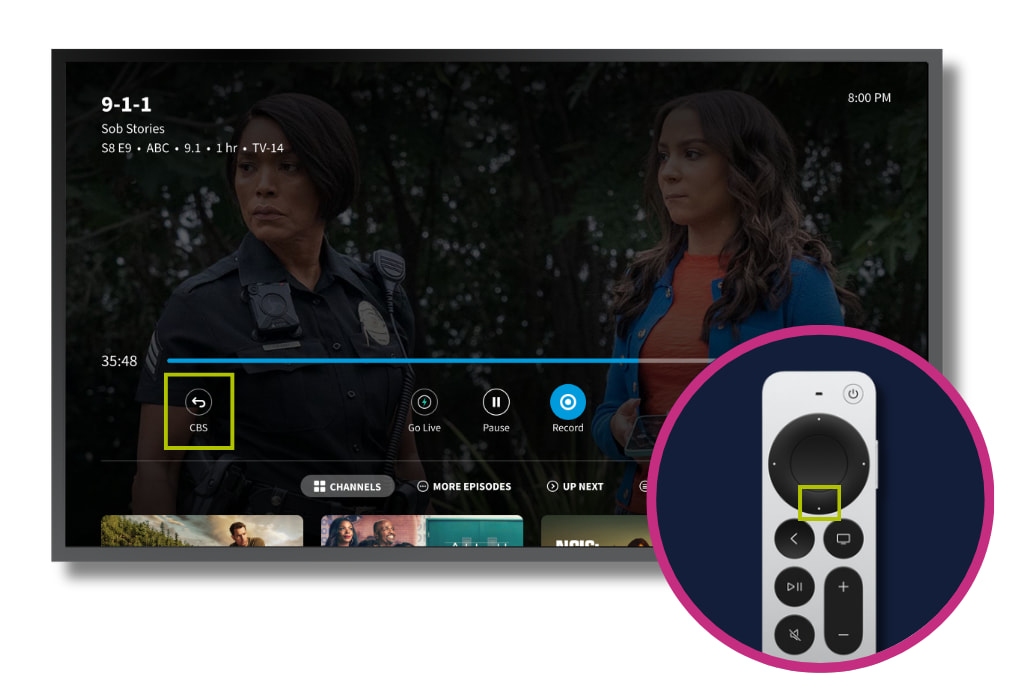
- Hit the down button again on your remote control, and you can browse what’s airing on other channels, other recordings, get program info and much more while the show you’re watching continues in the background.
Resources
Have a feature request? Share yours or vote for your favorite on the Tablo Community:
Get Help Anytime
If we didn’t get a chance to answer your question, or you have some follow-up questions, the support team is happy to help via chat, phone and email:
UP NEXT
TOPIC: Tablo App User Tips: Navigate your Tablo app like a power user and get the most out of your free TV experience
DATE & TIME: October 20 @ 5 PM ET
Join us as we chat about:
- Navigating key screens, features and settings
- Tips for browsing, recording and playback
- App platform quirks and workarounds
- And much more!
You can learn more and register for the session on our website.