Hi folks -
Thanks everyone for stopping by our latest Tablo All-Access chat and for all the great questions!
These sessions are all about YOU so let us know what you thought about yesterday’s chat and suggest future topics by filling out this quick 2-minute survey: Tablo All-Access Program - Post-Chat Feedback Survey
Recap - Tablo App User Tips
If you didn’t get a chance to join, here’s a quick recap of the tips and resources we shared:
- The 4th Generation Tablo app is available on most popular smart devices. Streaming devices and smart TVs offer more screens and features than the mobile app, so today we’ll focus on the TV experience.
- During first-time setup, your Tablo scans for the local broadcast channels received by your TV antenna and adds the free internet-based streaming channels available to Tablo users. The app then organizes programming from those channels into four main areas: the Home screen, Live TV, streaming-style guide screens and your recording Library.
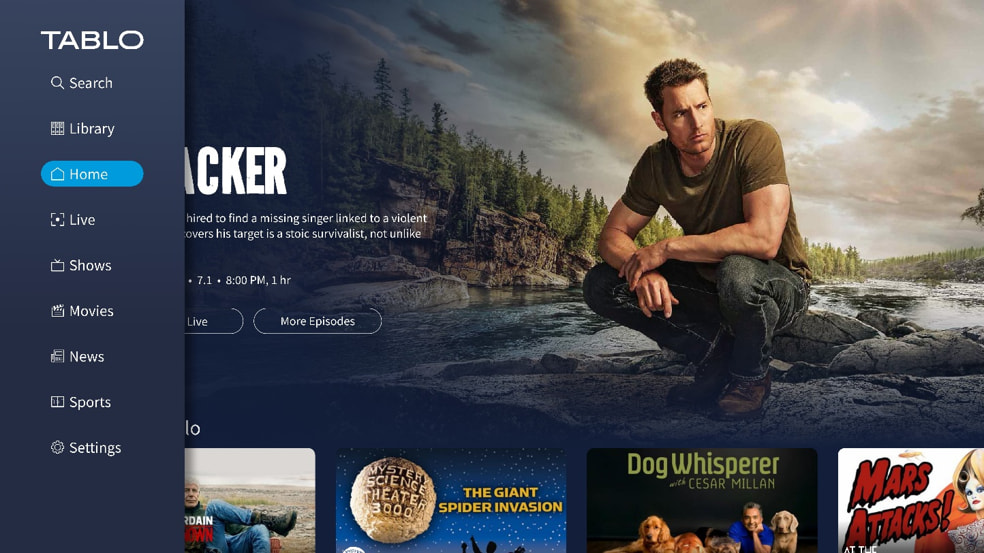
- Personalizing the programming you see in the Tablo app starts with your channel lineup. If you haven’t already, go to SETTINGS > CHANNEL LINEUP and remove the check from channels that don’t fit your interests. The channels can easily be re-added, but in the meantime won’t clutter up your guide screens with content you don’t care to watch.
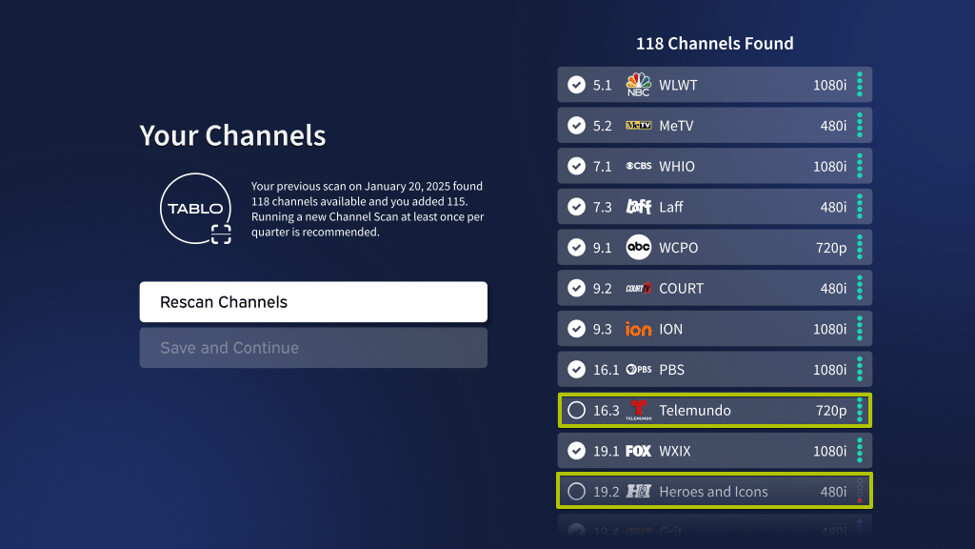
- You can also personalize your Home screen by setting your most-viewed networks as favorites. Programs from those selected channels will appear on the Your Favorites shelf. To add a favorite, open the Live TV grid, select a program airing on the channel and choose ADD TO FAVORITES from the slide-out menu.
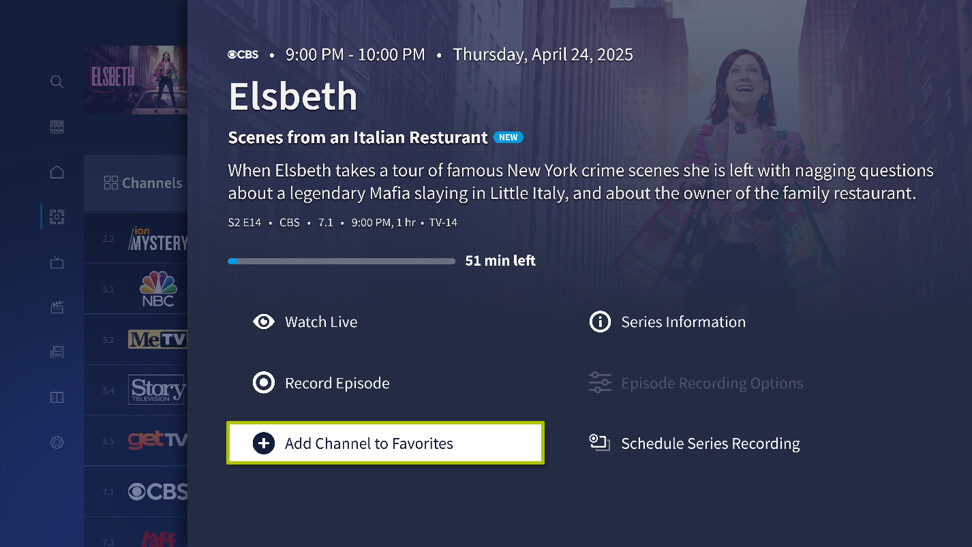
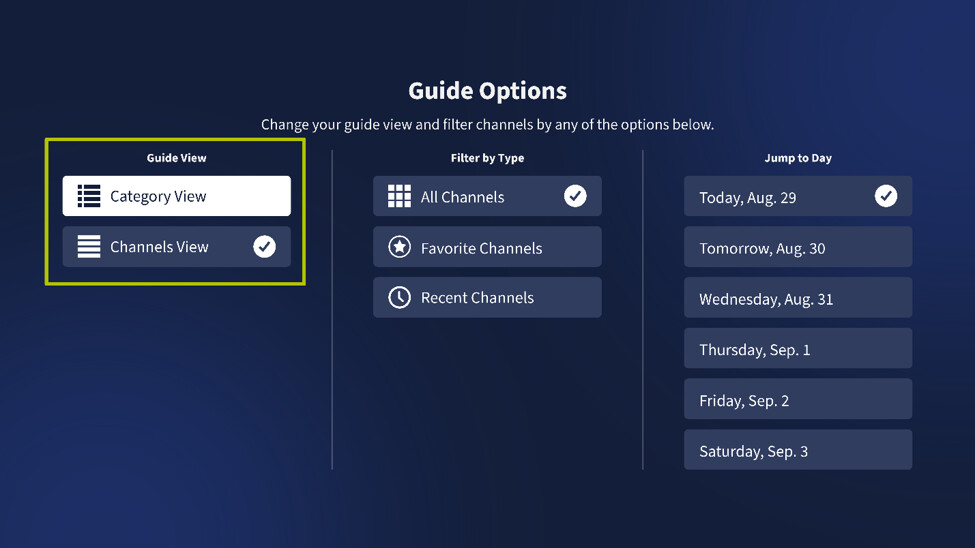
- You can also customize how channels appear on the Live TV screen. By default, the grid is organized by category, including a category for your favorite channels. To display only favorites, arrange channels by number or sort by what you watched most recently, select GUIDE OPTIONS in the top-left corner of the grid and choose your preferred view.
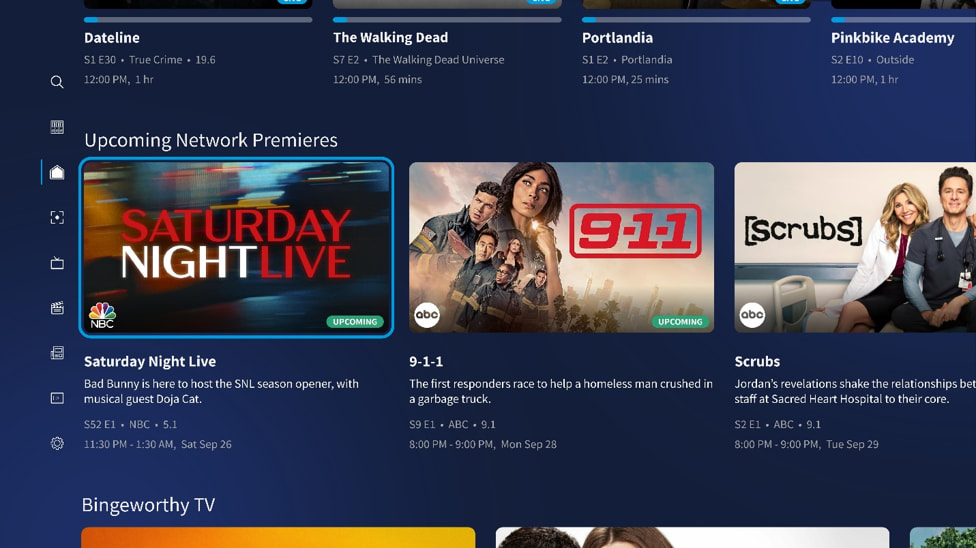
- When you’re not sure what to watch, the Tablo Home screen is a great place to start. From there, you can start playing your most recent recordings, discover popular programs airing live and browse and schedule recordings for upcoming network premieres.
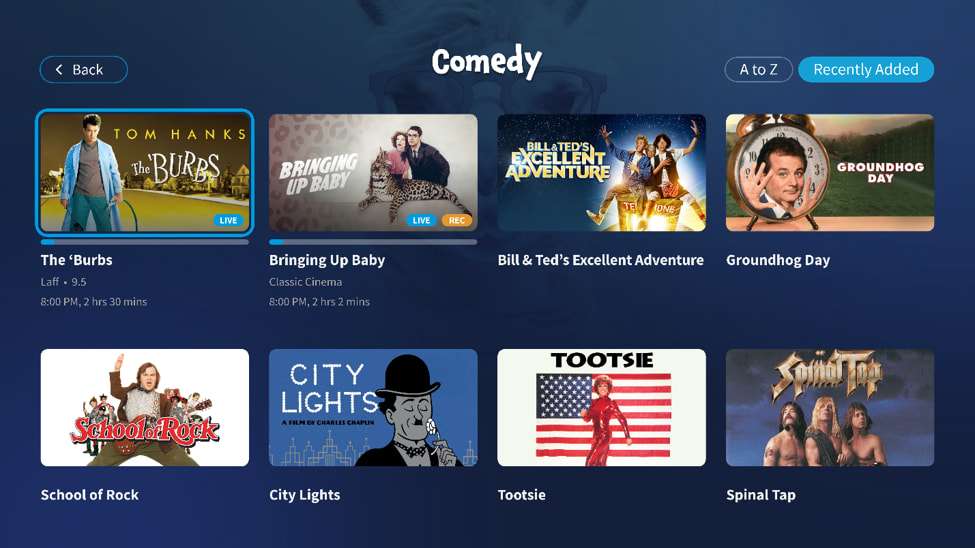
- In the mood for something more specific? Check out Tablo’s streaming-style guide screens sorted by TV shows, movies, news and sports. Here you can browse all upcoming programs by genre or sport, by network and more.
- You can even sort shows and movies within genres or networks by most recently added instead of alphabetically to see the freshest programming.
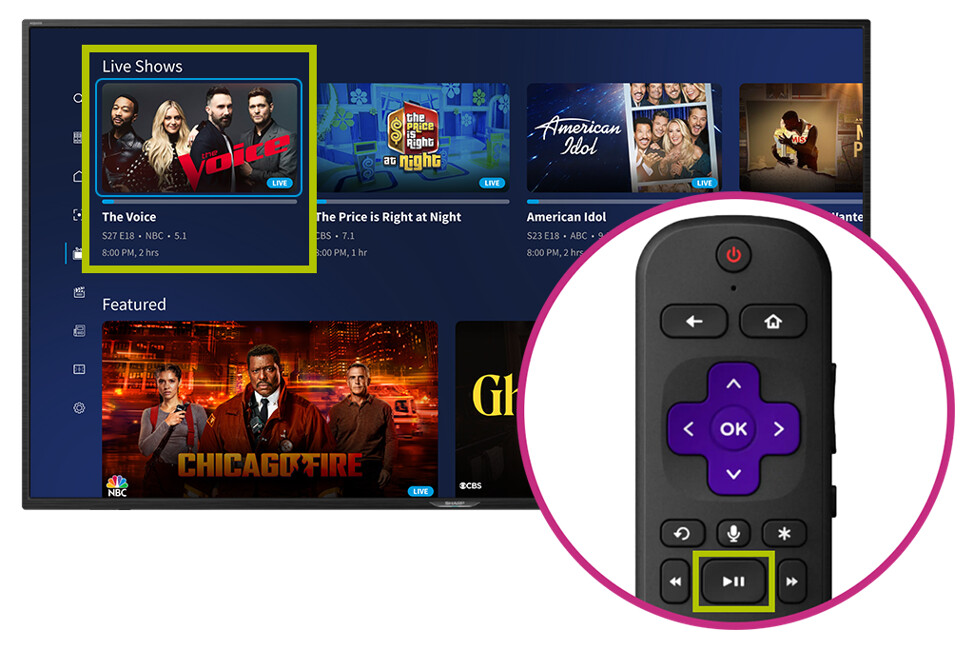
- Spot something you want to watch? If your remote has a dedicated PLAY button, press it instead of SELECT/OK to immediately start a live airing or completed recording from almost any screen.
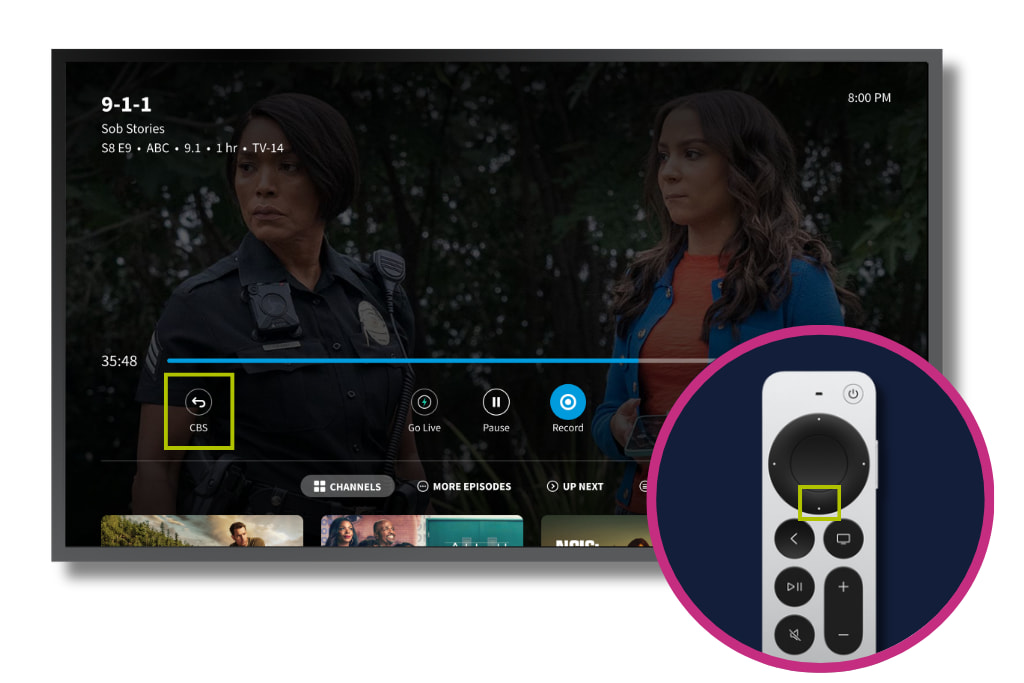
- While you’re watching a show, the In-Player Content Tray provides quick tools for channel surfing and multitasking. To open this two-level menu, pause playback or press the down arrow
 on your remote.
- The In-Player Content Tray includes a Last Channel button for switching between live programs. It also displays program information and lets you browse recordings or see what’s airing on other channels while your current program continues playing in the background.
https://support.tablotv.com/hc/en-us/articles/39136667510420
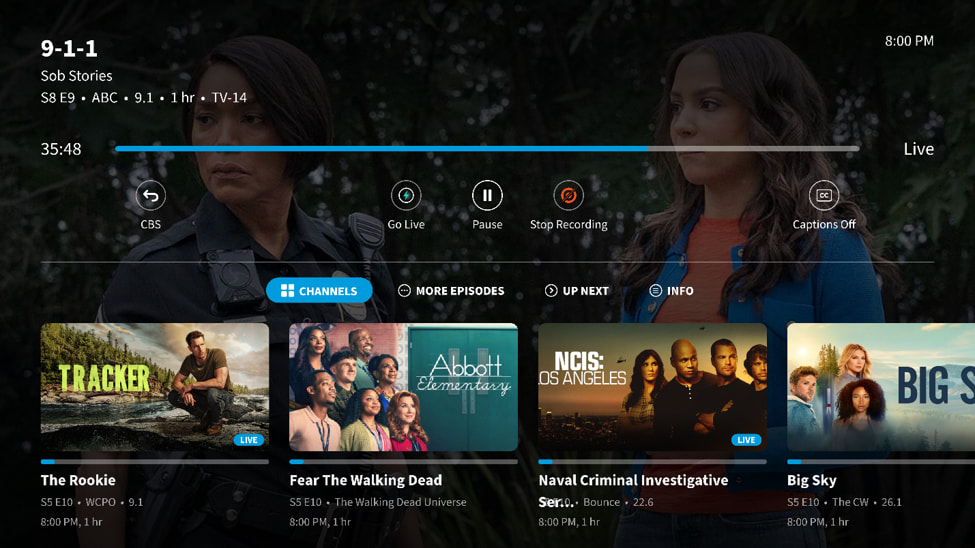
- This menu also includes a brand-new Record Live feature on Roku, Apple TV and Samsung TIZEN that will let you start recording your program without returning to the guide. It’ll be available on other app platforms soon.
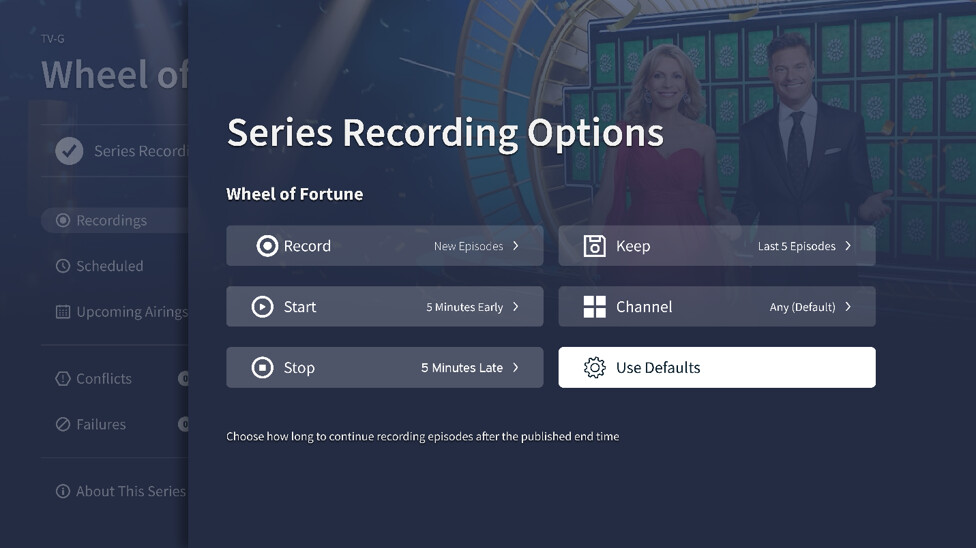
- But series recording is really where Tablo shines. When you select RECORD ALL or RECORD NEW in the Tablo app, your Tablo uses a unique ID number to look for and record episodes of that program. It will continue to record automatically until the series is unscheduled, even if it changes time slots or networks.
- If you record a program like Wheel of Fortune or the news that airs every day, your Library can get cluttered and your hard drive can fill up quickly. Using the ‘Keep’ setting will automatically delete all but the most recent episodes without you having to lift a finger.
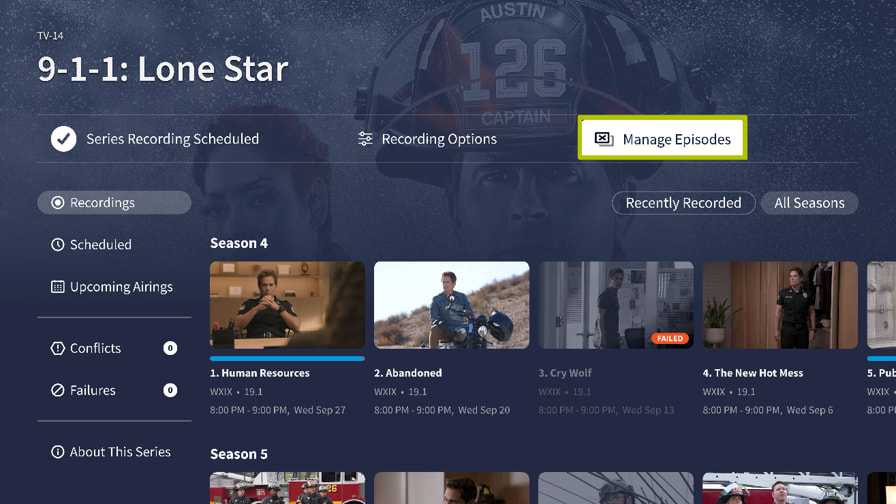
- Looking for a shortcut to delete multiple recordings at once? Go to LIBRARY > ALL RECORDINGS, select a series and choose MANAGE EPISODES at the top of the series information screen. From there, you can delete watched episodes, unprotected episodes, failed recordings or every recording in the series.
- While Tablo apps are generally consistent, some features are available only on mobile or TV-based versions of the app, and certain device platforms have quirks caused by software or hardware limitations. For example, in-progress recordings on Apple TV won’t start from the beginning, while Samsung and LG TVs can’t display closed captions for live or recorded over-the-air TV unless Audio Compatibility Mode is enabled.
- If a platform limitation or quirk is affecting your Tablo experience, consider using a different streaming stick or box with your TV. A separate streaming device may also provide faster performance than your television’s built-in smart platform.
Resources
- Have a feature request? Share yours or vote for your favorite on the Tablo Community:
- Have questions about your Tablo device or its status? Check out the My Status page:
Get Help Anytime
If we didn’t get a chance to answer your question, or you have some follow-up questions, the support team is happy to help via chat, phone and email:
UP NEXT
TOPIC: Compatible Device Advice: Choosing and using smart TVs and streaming devices to optimize your Tablo experience
DATE & TIME: November 12 @ noon ET
Join us as we chat about:
- What devices are Tablo-compatible
- Benefits and drawbacks of device platforms
- How to make dumb or aging TVs smart
- Streaming device setup tips
- And much more!
Learn more and register for the session on our website.